Labels:
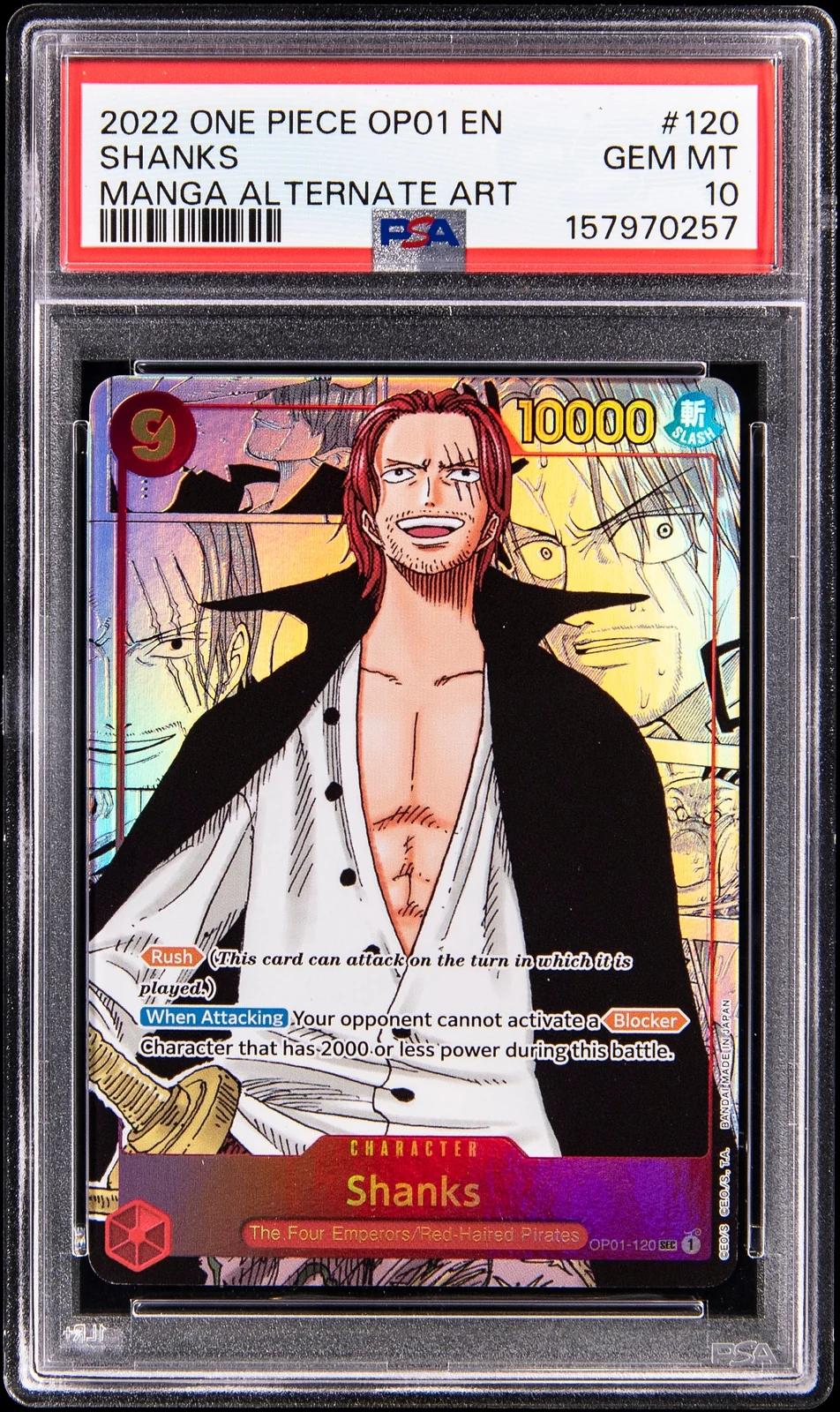
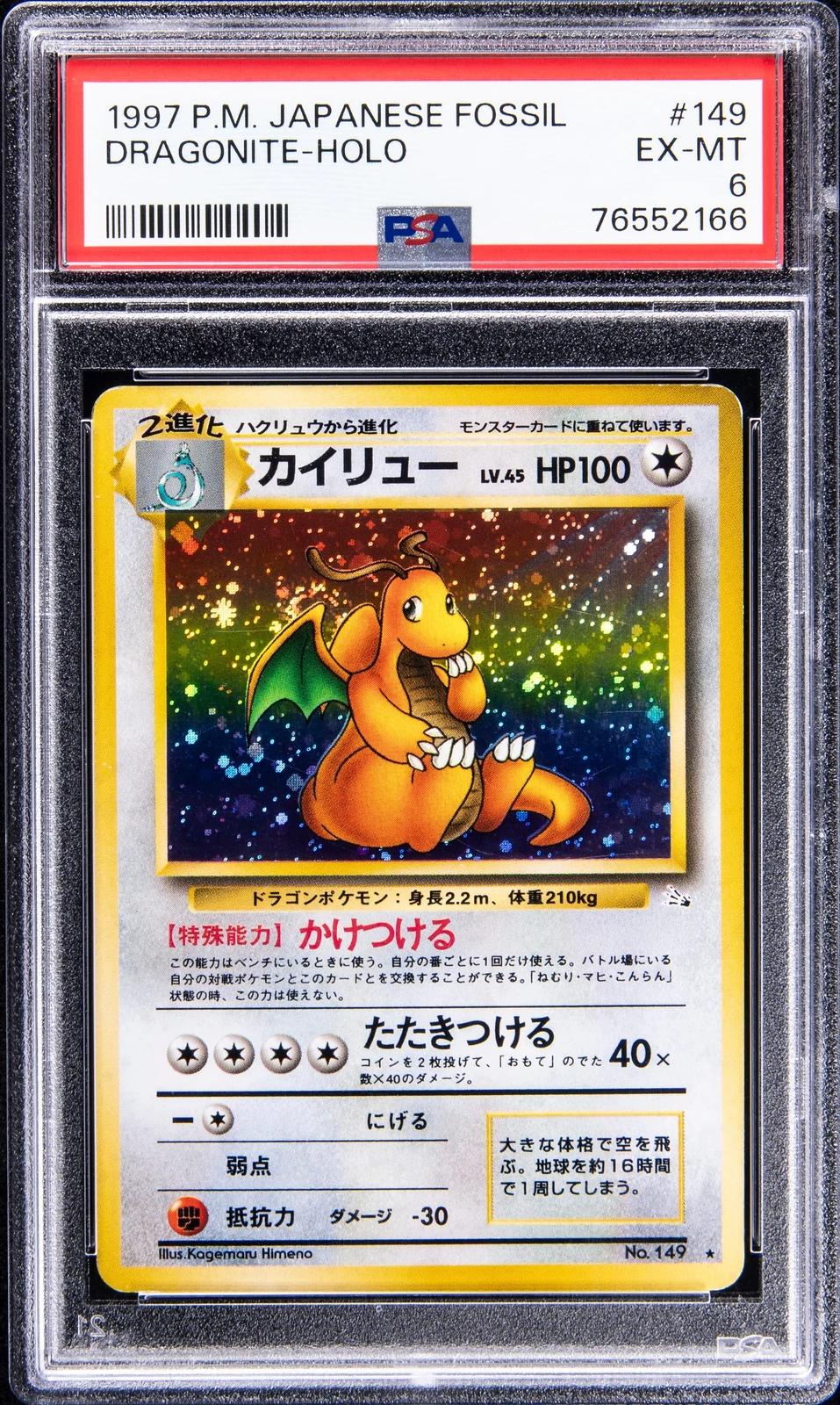
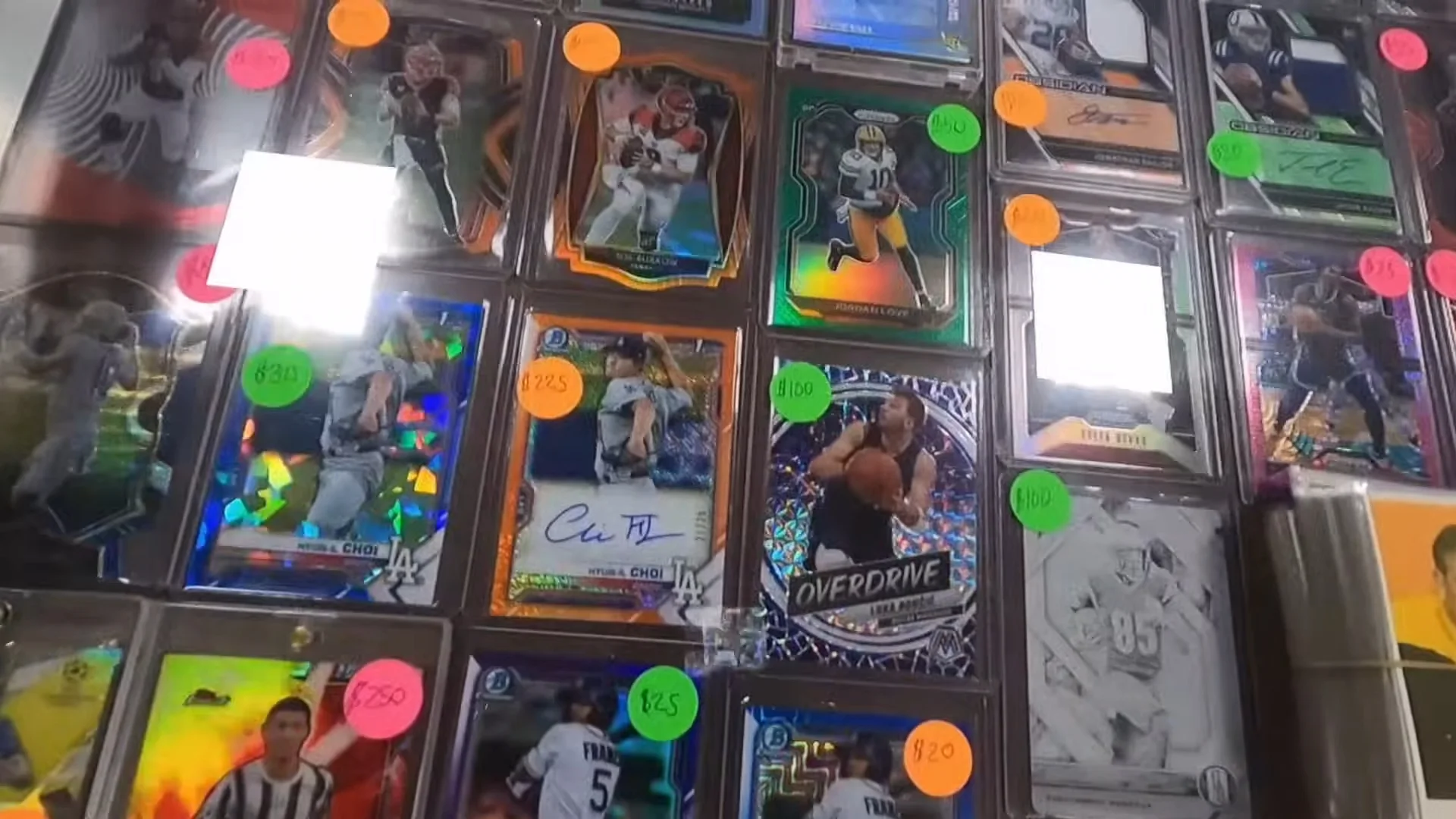
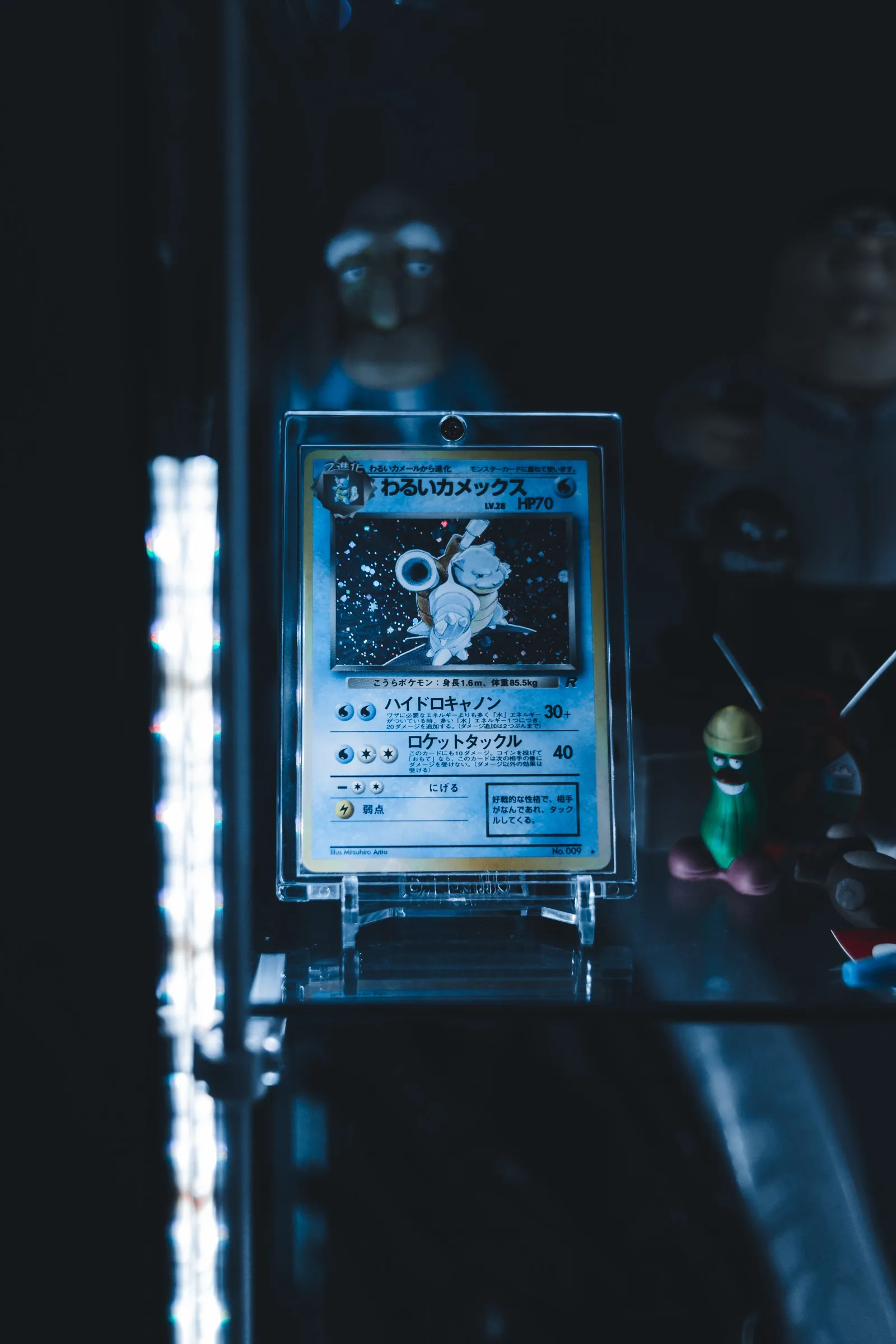
Price labels for sports and Pokémon cards: price, grade and a scan code on every tag. Your cost stays in CaseLink.

Every tag comes out of your inventory
Pick a card
Choose what it shows
Print it



Stop writing price stickers by hand
- Tags printed from one selection
- 24
- Saved layout per label stock
- 1
- Costs or floors on a tag
- 0
Label Studio, up close
One layout for the whole batch, built on the web app.
- Stock presetPick the roll or sheet you load. Size and feed come with it, and the preset stays saved.
- Label elementsPrice, item name, grade and cert, a scan code and the CaseLink ID. Cost and storage are not on the list. What does not fit the stock says so.
- The label itselfDrawn to the millimeter inside the safe area. The show price wins over the inventory price.
- Check, then printAll 24 labels in one batch, checked for fit before Review & print.
On the label or kept private
Only what a buyer needs gets printed.
One batch for the show, step by step
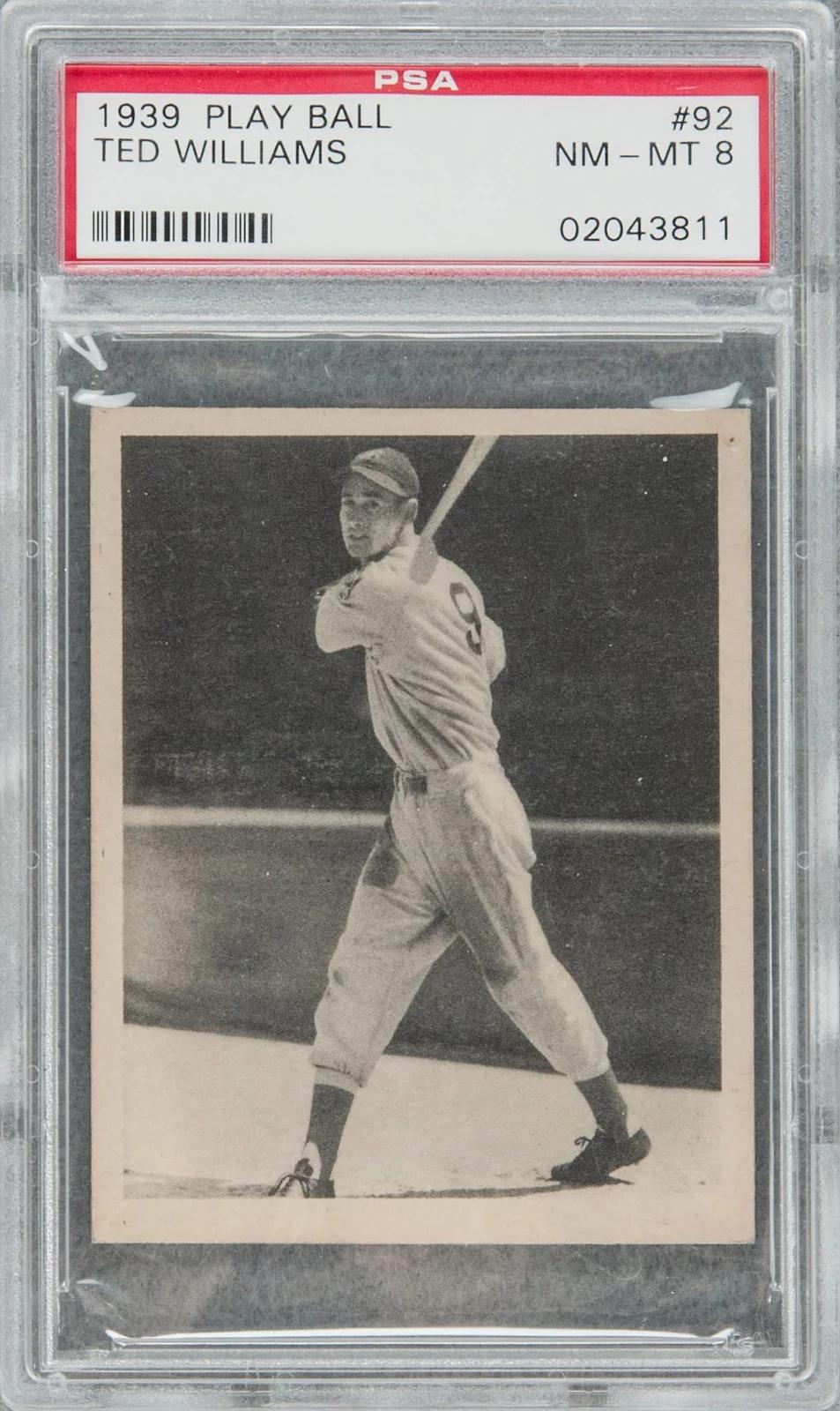
24 cards for the Harbor City Collectors Show, from selection to the last tag.
Pick 24 cards
Straight from the show inventory. A show price prints first; cards without one use the inventory price.
Use the saved layout
Show price + QR on DYMO 30336, 54 × 25 mm, one label per feed.
Print one test label
A hair off? Nudge the offset (x 0.4 mm, y −0.2 mm). It stays saved for this stock on this device.
Print all 24
Each tag carries its price, grade and a CL code that opens the card when you scan it at the table.
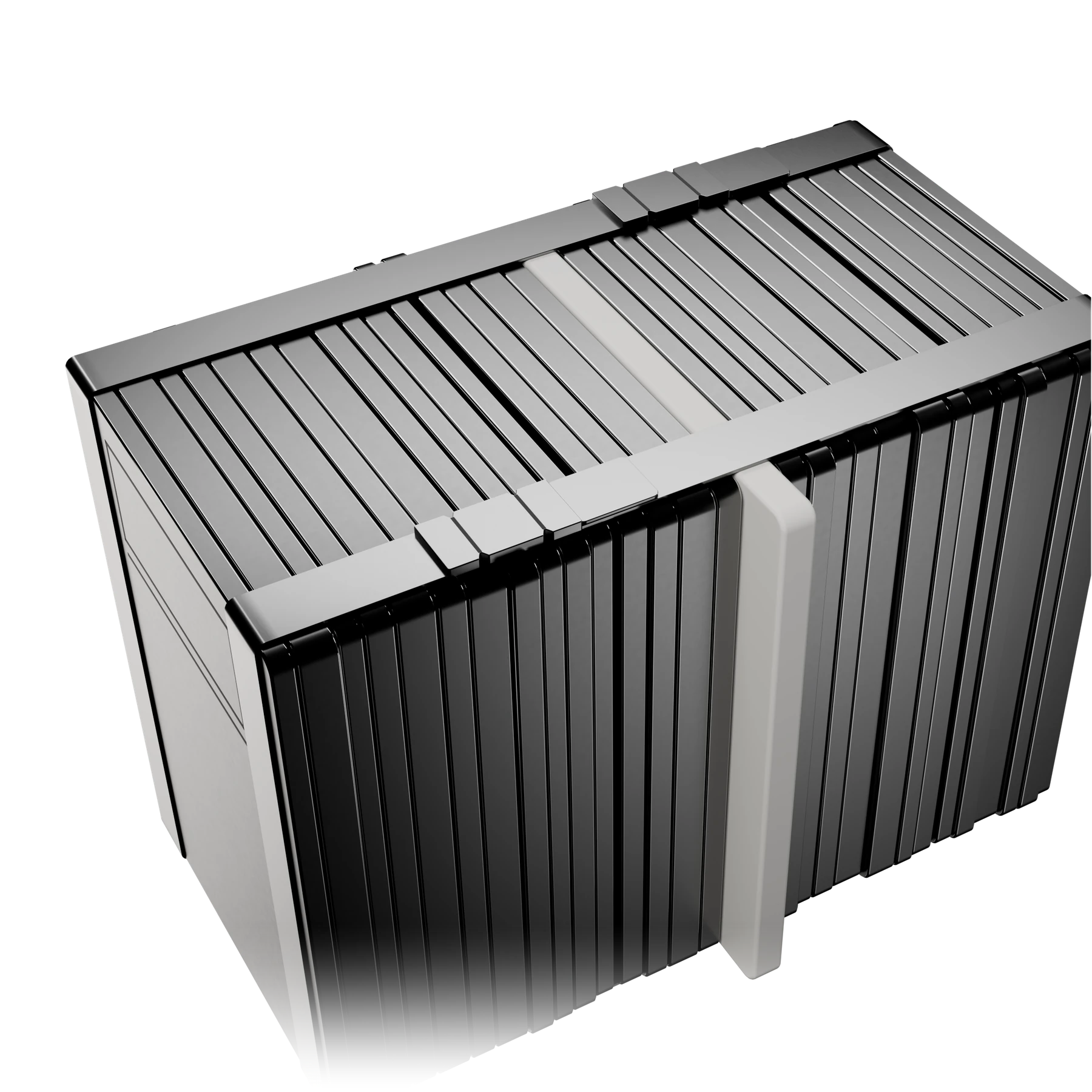
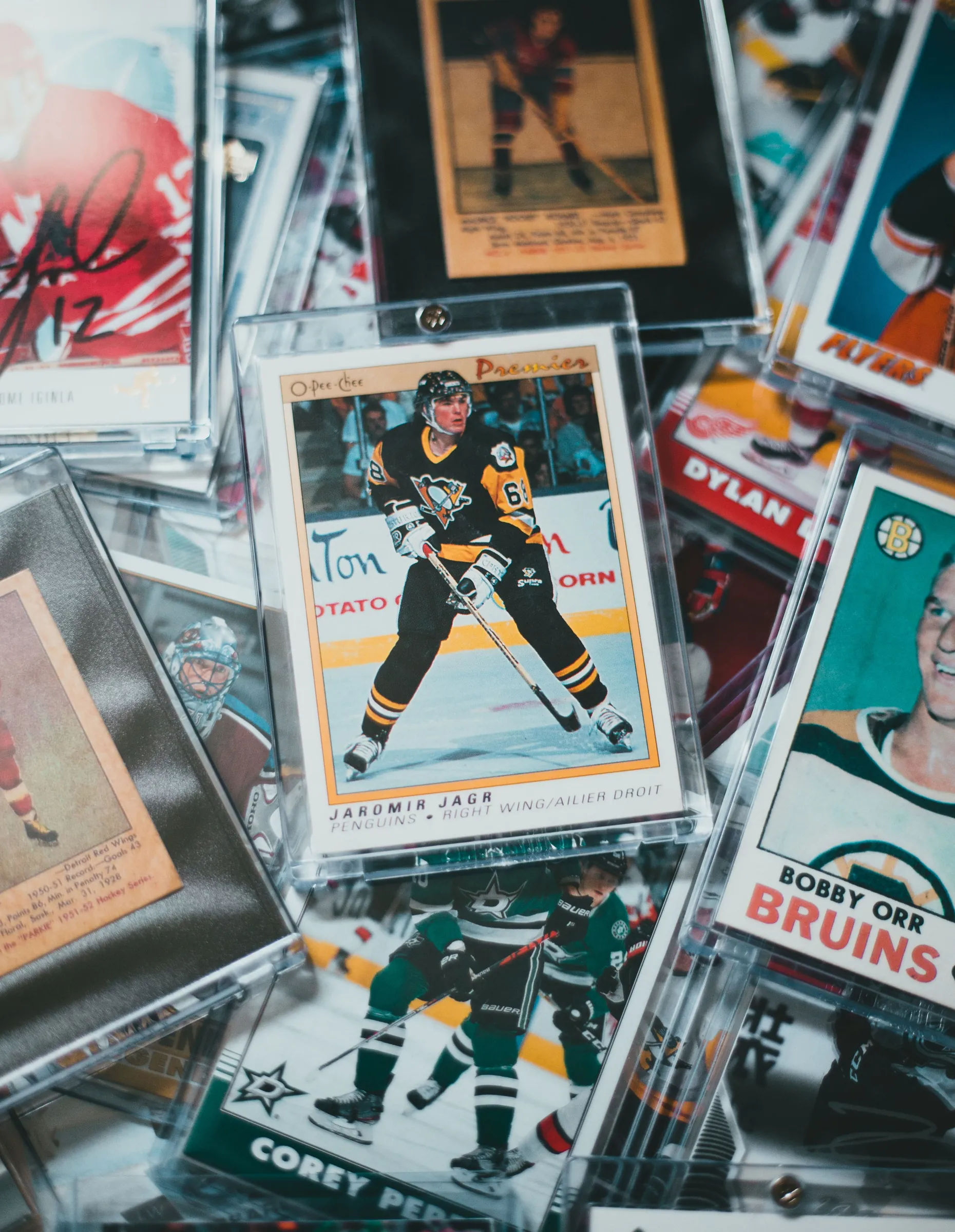
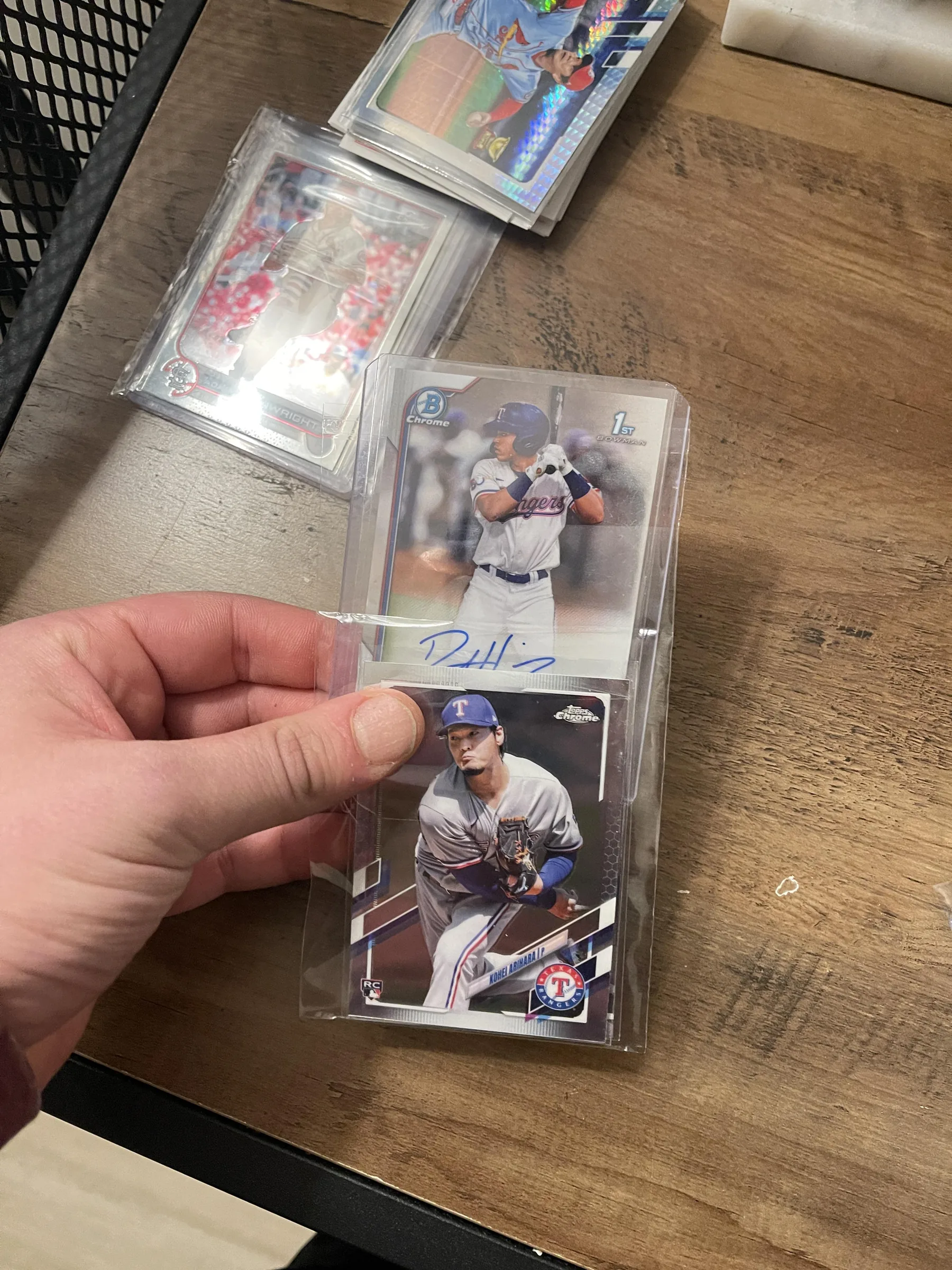
A price on everything in the case
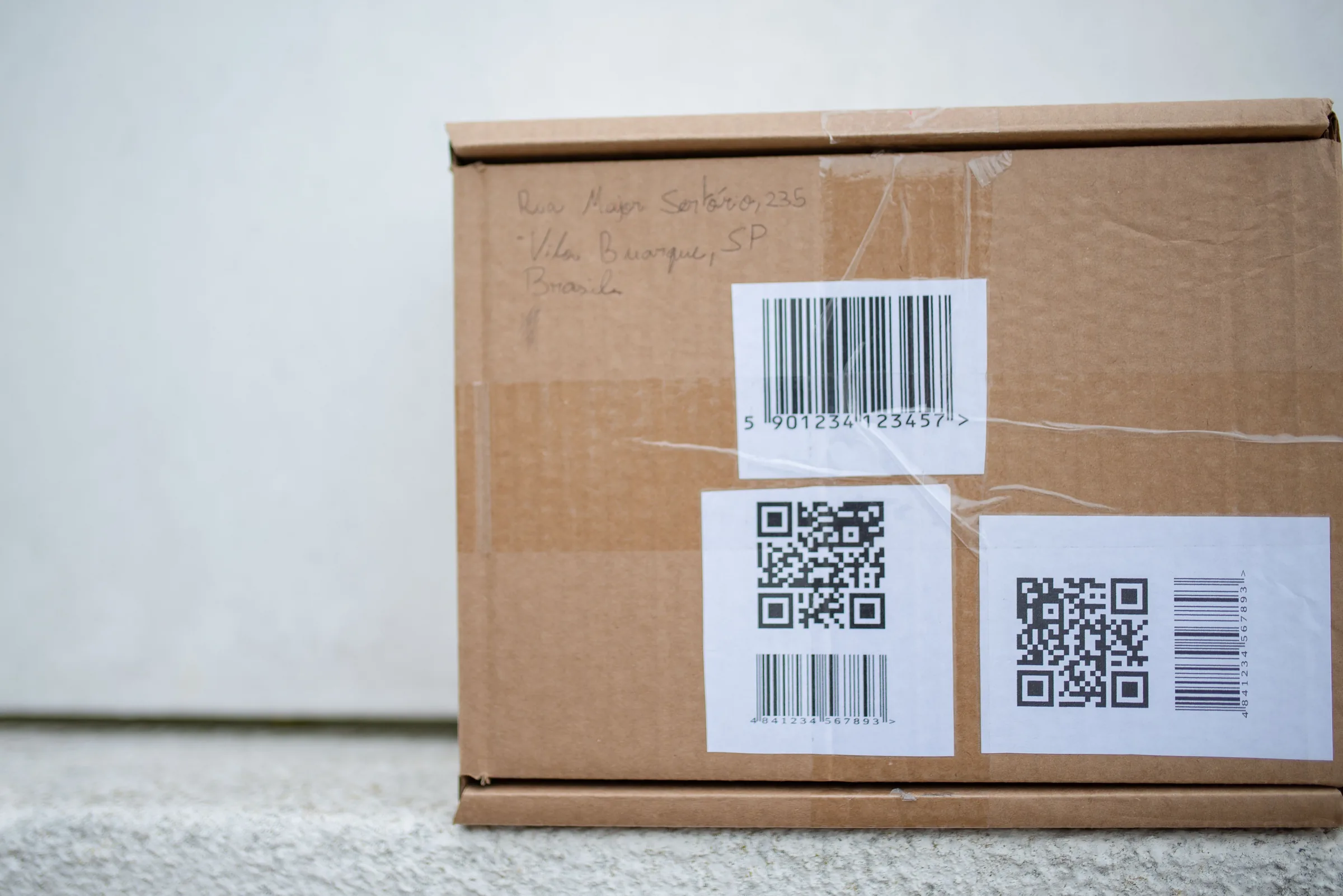
Barcode or QR?
40 mm
A Code 128 barcode needs a label at least 40 mm wide. Narrower labels get a QR code instead.
Labels
Before you print a batch
Can CaseLink create sports card price labels from inventory?
Yes. Select Inventory items and use a saved template or edit the layout. Arrange card details, prices, text and codes, with individual label overrides when one item needs a different treatment.
Can labels be prepared as part of a card show workflow?
Yes. Select Show Inventory, use the relevant show prices and prepare a print batch. Review the layout and test the output without rebuilding the card data in another document.
Is Labels available on Web and Mobile?
Both have Labels, for selecting items, working with templates and preparing labels. The editing layout and print setup adapt to the device; use a larger screen for detailed Web layout work.
What affects the final printed label?
Label stock, scale, printer, driver and device-specific print settings affect the result. Review layout warnings, adjust calibration and print a test label before committing to a full batch.